Playing Tetris on a School Chromebook: Keys, Touch Buttons and Saves
Published · 3 min read
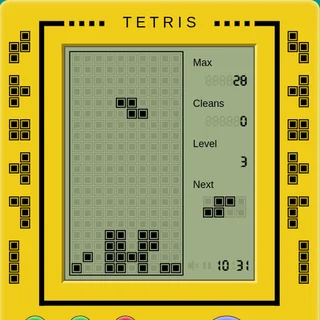
The Tetris on this site is a small HTML5 game, so it runs on the kind of laptop a school hands out and on a phone. A few details about how it handles keys, touch and saving make it much nicer to play. Here they are.
The setup screen comes first
When the game loads you see a dinosaur on the green screen, not a falling piece. That is the setup screen. Use it before you start:
- Left and Right pick the starting speed, from 1 to 6. It wraps around, so pressing Left on 1 takes you to 6.
- Up and Down pick the number of start lines, from 0 to 10 rows of random blocks at the bottom.
- Space starts the game.
If you just want normal Tetris, leave it on speed 1 and 0 lines and press Space.
Keys during the game
- Left / Right arrows: move the piece. Holding the key keeps it sliding.
- Up arrow: rotate.
- Down arrow: move the piece down faster while you hold it.
- Space: drop it straight to the bottom.
- P: pause. S: sound effects on or off. R: reset and go back to the setup screen.
On a Chromebook, click once on the game before you start so it has keyboard focus. If the arrow keys scroll the page instead of moving pieces, that click is what is missing. The fullscreen button under the game also helps, because it takes the page out of the way completely.
Playing on a touch screen
The game draws a whole handheld console, and on a phone or a touch Chromebook its round buttons are the controls. The big button on the left is Drop, the four on the right are rotate, left, right and down, and the three small ones at the top are pause, sound and reset. Hold a button to repeat it, just like holding a key. The console is tall, so the game fits a phone held upright.
Why it pauses on its own
Switch to another tab or window and the game pauses. This is on purpose: a teacher walks past, you change tabs, and the game waits instead of filling up the screen while you are away. Come back and press P, or the pause button, to carry on.
It saves after every move
This version saves its whole state in your browser every time something changes: the board, the piece in play, the score, your best score, your speed and the sound setting. Close the tab in the middle of a game and open it later on the same device, and the game is still there. The save lives in the browser's local storage, so it stays on that device and that browser only. Incognito windows and clearing your browsing data start you from zero.
Keyboard or touch: which is better?
If you have a keyboard, use it. Arrow keys are quicker than tapping drawn buttons, you can hold two at once (Down and Left, say) and your fingers do not cover the screen. Touch is fine for the slower speeds and for a quick game on a phone, but on speeds 5 and 6 most people find the buttons too slow. On a touch Chromebook you can mix the two: play with the keys and tap the console only for pause.
On a phone, turn the brightness up a little. The green LCD screen is drawn with low contrast on purpose, like the real handhelds, and in sunlight the empty cells and the blocks can look alike.
If something is not working
- Keys do nothing: click inside the game once, then try again.
- No sound: press S. Some browsers also block sound until you have clicked on the page.
- The board looks stuck: it is probably paused. Press P.
- You want a clean start: press R to reset.
That is all there is to it. The game is small, the rules are old and the only thing between you and a high score is the next piece.
More from the blog
- Tetris Scoring Explained: Points, Lines and Speed Levels
Exactly how this Tetris counts points: 10 per piece, 100 to 1,500 for line clears, a new speed every 20 lines — and what that means for how you play.